Trend Tool – Configuring a Graph
Note: You can change configuration settings for this tool in Run mode. However, these settings usually only persist for the current runtime session. When you close the CygNet Studio screen on which the tool resides, the tool settings may revert to those originally configured in Edit mode.
The Graph page enables you to customize your graph to suit visual display needs.
|
Trend Tool - Graph Page |
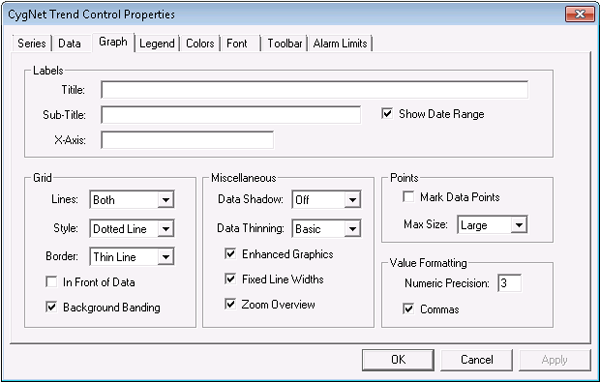
Graph Page Properties
The following table lists and describes Graph page properties.
| Property | Description |
|---|---|
| Labels | |
|
Title |
This is the title of the entire trend as displayed on the trend itself. The title is displayed at the top of the trend by default. See also Title. |
|
Sub-Title |
This is the subtitle of the entire trend as displayed on the trend itself. The subtitle is displayed at the top of the trend, but below the title, by default. See also SubTitle. |
|
Show Date Range |
Check to enable the display of the date range defined for the trend. If enabled, the date range displays below the title and beside the subtitle (if a subtitle is defined). See also SubTitleDateRange. |
|
X-Axis |
Defines the label of the x-axis displayed. The x-axis always shows the time frame being displayed on the graph. See also XAxisLabel. |
| Grid | |
|
Lines |
Options on this drop-down menu enable various ways to display grid lines. Options are Both, X Only, Y Only, or None. See also GridLines. |
|
Style |
Options on this drop-down menu define the appearance of displayed grid lines. Options are Thin Lines, Thick Lines, Dotted Line, and Dashed Line. See also GridStyle. |
|
Options on this drop-down menu specify the use and type of a graph border. Options are None, Thin Line, Thick Line, Shadow, and 3D Inset. See also GraphBorderStyle. |
|
|
In Front of Data |
Check to place grid lines in front of the data on a graph. See also GridInFront. |
|
Check to display bands in the background of your trend grid. Adjust band colors using the Graph Background property on the Colors dialog box. See also GridBands. |
|
| Miscellaneous | |
|
Data Shadow |
Applies the selected visual effect option to various elements of a trend. The options are Off, Shadow, and 3-D. See also DataShadows. |
|
Enables a graph to automatically filter out excessive data points. This can improve performance if you are displaying a large amount of data. Typically, the effect of data thinning is not noticeable to a user. However, if Mark Data Points is enabled, the effect of data thinning might be noticeable. All data points still display upon zoom. Note: Data thinning is currently incompatible with square wave lines. Options are as follows:
See also DataThinning. |
|
|
Check to enable enhanced graphics. Doing so can decrease trend performance. See also EnhancedGraphics. |
|
|
Fixed Line Widths |
Check to enable fixed series line widths. If enabled, series line types do not resize even when the control is resized. If disabled, only a subset of available series line types resize when the tool resizes. See also FixedLineWidth. |
|
Zoom Overview |
Check to display a zoom overview window below the trend whenever the trend is in zoom mode. This property performs optimally when enabled in conjunction with Enhanced Graphics. See also ZoomOverview. |
| Points | |
|
Check to enable the display of each data point on a trend where a data point occurs. See also MarkDataPoints. |
|
|
Max Size |
If Mark Data Points or any point-based y-axis Plot Style (for instance, Points + Line) is enabled, data point sizes can be set to scale within a fixed range relative to a trend tool. This ensures that points do not scale to an unreasonably large size. Options are as follows:
See also MaximumPointSize. |
| Value Formatting | |
|
Numeric Precision |
Type a number in this field to define the number of decimal places you want to display to the right of the decimal point. This feature only affects the Value at Cross Hairs option in Run mode. See also NumericPrecision. |
|
Commas |
If enabled, a comma is used as the numeric divider on the y-axis. For example, 123456 would be displayed as 123,456. See also Commas. |


